JoinCRS.com: How Students Join Live Classroom Polls
Find out how the student joining website works, where to enter a classroom code, what teachers can do, and whether the service is safe to use.

Classroom questions don’t always need paper. Sometimes, one quick vote is enough.
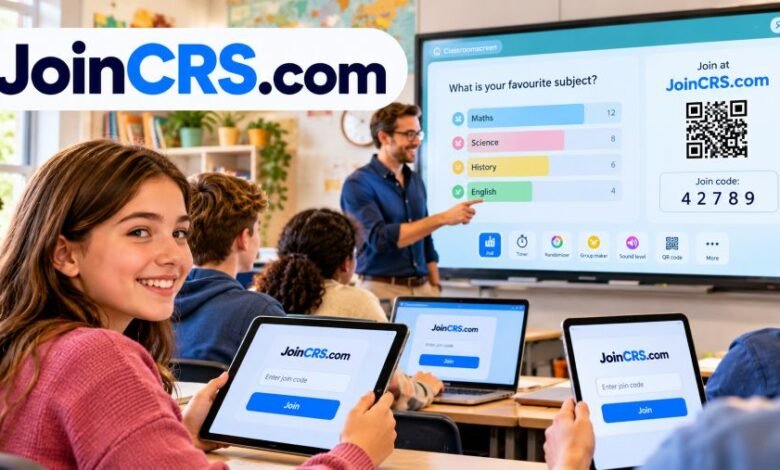
JoinCRS.com is a student joining website connected to Classroomscreen, an online teaching platform. Students use it to answer live classroom polls. They enter a code shared by their teacher or scan a QR code.
No student account is needed.
The website opens the official joining page at join.classroomscreen.com. It works through a web browser, making it useful during classroom lessons and remote teaching.
But there is something worth knowing. The joining website and the teaching platform serve different purposes.
Let’s look at how they work.
Quick Facts
| Detail | Information |
|---|---|
| Website | JoinCRS.com |
| Official joining page | join.classroomscreen.com |
| Connected platform | Classroomscreen |
| Website type | Educational polling service |
| Main purpose | Joining teacher-created polls |
| Operating company | Classroomscreen B.V. |
| Country | Netherlands |
| Main users | Students and teachers |
| Student account | Not required |
| Joining method | Code or QR code |
| Student cost | Free |
| Teacher remote voting | Available with Basic and Pro |
| App installation | Not required |
| Question types | Multiple choice, smileys, true/false |
| Main platform website | classroomscreen.com |
What Is This Student Joining Website?
Think about a normal classroom.
A teacher asks a question. Some students raise their hands. Others stay quiet, even when they know the answer.
Online polling offers another option.
The teacher displays a question. Students respond using their own devices. Their votes appear in the teacher’s poll results.
That’s the basic idea.
The joining page connects students to an active Classroomscreen poll. It doesn’t create lessons or manage school accounts.
Teachers handle those tasks elsewhere.
The main Classroomscreen platform offers several classroom tools. These include timers, drawings, calendars, randomizers, and group-making features.
Students visiting the joining page access the voting activity their teacher has prepared.
This difference matters. JoinCRS.com isn’t a separate online school.
How Does the Joining Process Work?
The process is fairly simple.
A teacher creates a poll through Classroomscreen. They turn on remote voting and share the joining instructions.
Students can then respond from their devices.
Instructions for students
- Open Chrome, Safari, Firefox, or Edge.
- Visit https://joincrs.com.
- Find the code shown by your teacher.
- Type that code into the joining field.
- Select the option to continue.
- Read the question on your screen.
- Choose your answer and submit your vote.
That’s the main process.
Students can also scan the displayed QR code. This opens the voting activity without manually typing the joining code.
The code must belong to the correct active poll. An old or incorrect code may not work.
Instructions for teachers
Teachers start from the main Classroomscreen application.
First, open the teaching platform. Sign in with a Basic or Pro account.
Next, add the Poll widget.
Write your question and prepare the possible answers. Then open the widget settings.
Enable remote voting.
The platform displays joining information for students. This includes a code and a QR option.
Share these instructions with your class.
Students can now submit their responses. Teachers can view the votes and control whether voting remains open.
The official Classroomscreen Poll documentation explains these controls.
What Features Are Available?
The joining website has one main job: receiving student poll responses.
Most classroom tools belong to Classroomscreen itself.
Still, the connected voting system offers several useful options.
Multiple-choice questions
Teachers can provide up to five answers.
Students select the option they believe is correct.
This works well for short knowledge checks. Teachers can see the distribution of votes.
True or false questions
Some questions need only two answers.
For example, a science teacher might display a statement about the solar system.
Students choose true or false.
The teacher checks the results immediately.
Smiley-based responses
Not every poll tests knowledge.
Teachers may want to understand how students feel about a lesson or activity.
Smiley polls give students a visual way to respond.
This can work for classroom check-ins.
Live voting results
Teachers can display voting results as charts.
Supported chart styles include bar charts, pie charts, and doughnut charts.
The visual results help teachers understand the responses.
Voting controls
Teachers can open or close voting.
They can also reset a poll.
This allows another round of answers when needed.
These features belong to the Poll widget. The student joining page provides access to its remote voting function.
Why Do Teachers Use This Platform?
Getting answers from every student can be difficult.
Large classes make that harder.
Some students feel comfortable speaking. Others prefer quieter ways to participate.
A classroom poll offers another choice.
Teachers can check whether students understood a topic. They can also ask for opinions or collect quick feedback.
Here is one example.
A teacher explains a maths question. Then they display three possible answers.
Students vote from their devices.
If many answers are incorrect, the teacher knows the topic needs another explanation.
The results provide quick feedback.
Of course, a poll doesn’t replace proper assessment. It simply helps teachers check responses during a lesson.
Who Created the Connected Teaching Platform?
Classroomscreen began as a teaching project in the Netherlands.
Its founder, Laurens Koppers, worked as a science teacher. He wanted clearer ways to display instructions during lessons.
The first version launched in 2017.
It included basic classroom display tools.
As more teachers started using the website, the project grew.
Sebastiaan de Vries joined Koppers to work on the technology. The two became colleagues in 2019.
According to the company’s official website, Koppers serves as founder and CEO. De Vries is founder and CTO.
The business operates under Classroomscreen B.V.
It is registered in the Netherlands under company number 82109206.
One detail needs care, though.
The 2017 launch belongs to Classroomscreen. It should not be presented as the verified launch date of the JoinCRS.com domain.
Is the Service Free?
Yes. Students can join supported classroom polls for free.
They do not need a paid subscription.
Teachers have different account choices through Classroomscreen.
| Plan | Advertised price | Main access |
|---|---|---|
| Basic | Free | Classroom widgets and remote voting |
| Pro | $36 per year | Extra screen-saving and customization features |
| Organization | Varies | Multiple licenses for schools |
The advertised Pro rate is $3 per month, billed annually in US dollars.
The Basic plan includes all 26 advertised widgets and remote poll voting.
Pro adds saved screens, folders, custom backgrounds, and other settings.
Schools can purchase multiple licenses.
Prices and applicable taxes may vary by billing location. Readers should check the official pricing page before purchasing.
For ordinary student voting, no purchase is needed.
Does It Require a Student Login?
No traditional student login is required.
Students usually need a teacher-provided joining code.
They don’t need to create a personal Classroomscreen account to submit a poll response.
Teachers are different.
An account is required to enable remote polling. The free Basic account supports this feature.
That distinction can prevent confusion.
Students looking for a password-based login may be looking for the wrong thing. The student joining page is meant for codes, not normal teacher account access.
Can Students Join From Home?
Yes, when a teacher runs a remote poll.
This makes the service useful for online classes.
The teacher can share their classroom screen during a video lesson. Students then open the voting page separately.
They enter the code and respond.
The teacher sees the collected votes.
This can work alongside remote teaching platforms such as Microsoft Teams, Zoom, or Google Meet.
Students still need a working internet connection and a supported browser.
Is JoinCRS.com Safe to Use?
The website has a clear connection to an established educational service.
Classroomscreen identifies JoinCRS.com in its official Terms and Conditions. Its privacy policy also covers the domain.
The joining address redirects to the official Classroomscreen student page.
These details support its legitimacy.
But safety also involves privacy.
What information can be collected?
Classroomscreen says its websites may process information about visitors.
This includes IP addresses, browser details, and visit information.
Registered accounts may involve additional data.
The company states that it does not sell personal information. It also says it does not display advertisements within its websites and application.
Still, no account requirement doesn’t mean zero data collection.
Parents and schools should read the official privacy policy before using the service with children.
Are student answers anonymous?
Classroomscreen’s published Poll documentation describes the voting responses as anonymous.
It states that teachers cannot identify which student selected a particular answer through that widget.
That makes the tool suitable for many quick opinion polls.
But it also limits individual assessment.
Teachers who need named student results should use a system intended for that purpose.
Basic safety advice
Students should check the website address.
The official joining page is:
https://join.classroomscreen.com
Never share school passwords with an unfamiliar website.
Use only the joining instructions provided by your teacher.
Why Might the Website Not Work?
Technical problems can happen.
Sometimes the problem is small. A mistyped code can stop the joining process.
Other issues may involve the browser or internet connection.
The joining code is rejected
Check every number carefully.
Ask your teacher whether the code is still correct.
If the teacher changed the poll session, you may need the current joining details.
The page won’t load
Check your internet connection.
Refresh the website.
You can also try another supported browser.
Classroomscreen recommends refreshing the page while bypassing cached content when loading problems occur.
The poll doesn’t appear
The teacher may not have enabled remote voting.
Ask them to check the Poll widget settings.
They should also confirm that voting is open.
The school network blocks access
Some school networks restrict websites.
If the joining page works elsewhere but not at school, contact the teacher or school IT department.
Classroomscreen publishes network guidance for these situations.
The browser is outdated
Older browsers may cause problems.
Classroomscreen supports updated Chrome, Firefox, Edge, and Safari versions.
Internet Explorer isn’t supported.
A browser update may solve the issue.
Can Students Use a Phone or Tablet?
Yes. The platform supports browser-based access on suitable devices.
Students can use smartphones, tablets, laptops, or desktop computers.
An updated browser is important.
The joining process remains similar across devices.
Open the website. Enter the code. Submit the response.
QR codes can make phone access easier.
There is no need to download a separate student voting application for this basic process.
How Is It Different From a Full Learning Platform?
The joining website focuses on live participation.
A learning management system usually handles wider school activities.
These may include assignments, grades, course materials, and student records.
The Classroomscreen joining page does not offer that complete learning management service.
Here is the practical difference.
| Function | Student joining page |
|---|---|
| Enter a teacher’s poll | Yes |
| Answer live questions | Yes |
| Use a QR code | Yes |
| Create full courses | No |
| Manage student grades | No |
| Submit homework files | Not its stated function |
| Access a personal learning dashboard | Not its stated function |
So, it works best alongside regular classroom teaching.
It isn’t intended to replace a school’s main education system.
Main Benefits and Limitations
There are clear reasons teachers may choose this polling option.
Students can join without registration. The process is short.
Questions are easy to answer.
Results appear quickly.
Teachers can collect responses without asking everyone to speak individually.
But there are limits.
A live poll requires a teacher to prepare and enable the activity.
Internet access is needed.
The supported question formats are fairly basic.
Anonymous voting also means teachers cannot treat the responses as individually verified test results.
For quick feedback, those limits may be reasonable. For detailed exams, another assessment system would be more suitable.
Frequently Asked Questions
1. What is the main purpose of this website?
It connects students to live Classroomscreen polls. Students enter a teacher-provided code and answer questions.
2. Do students need an account?
No. Students can join remote polls without registering a personal account.
3. Where can students find the joining code?
The teacher displays the code when remote voting is enabled. Students should use the current code shown during the lesson.
4. Is the website free for students?
Yes. Basic student participation is free. Teachers can enable remote voting using a free Classroomscreen Basic account.
5. Can students use a mobile phone?
Yes. Students can use a supported mobile browser. They may also scan the QR code shared by their teacher.
6. Can teachers see individual answers?
The published Poll widget documentation describes voting as anonymous. It does not provide individual student answer tracking.
7. Who owns the service?
It is operated as part of Classroomscreen, whose registered company is Classroomscreen B.V. in the Netherlands.
8. What should students do if a code fails?
Check the code carefully. Then ask the teacher to confirm the active poll and its joining instructions.
Final Thought
JoinCRS.com keeps classroom voting simple.
Students don’t need a complicated setup. They open the joining page, enter their teacher’s code, and answer the question.
Teachers get quick feedback.
The system is best suited to short polls, classroom check-ins, and basic knowledge questions.
It isn’t a complete school platform. That’s worth remembering.
For students who only need to join a live poll, the official Classroomscreen joining page provides the necessary access.