How to Prepare Your PC for a New Game: Check Drivers, Compatibility, and Bottlenecks

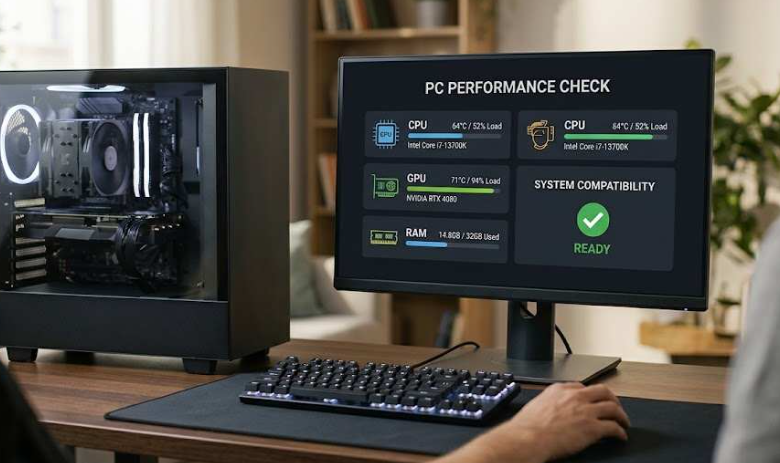
Installing a new game on a PC is usually pretty simple. You download it, wait for the files to finish, launch it, and expect to start playing. But things do not always go that smoothly. A game can install without any problem and still run poorly once you get into an actual match.
You might notice sudden stutters, low FPS, freezing, crashes, or graphics settings that need to be turned down more than expected. Sometimes the hardware is simply not powerful enough. In other cases, the problem can be related to drivers, system configuration, or an imbalance between different components.
That is why it is useful to spend a few minutes checking your PC before putting a new game through its paces. You do not need to be a hardware expert to do it. A few simple checks can tell you whether your system is ready and where you should look if performance is not what you expected.
Start by Checking the Game Requirements
The first thing to find out is whether your PC can actually handle the game.
Most PC games provide minimum and recommended system requirements. These normally include the processor, graphics card, RAM, operating system, and storage space. The minimum requirements are generally intended to indicate the basic hardware needed to run the game, while the recommended specifications give you a better idea of what is needed for a smoother experience.
The confusing part is comparing these requirements with your own hardware. Knowing that you have an Intel or AMD processor, for example, is not enough. The exact model matters. The same applies to graphics cards and other components.
This is where a Can I Run It check can save some time. Instead of comparing every specification manually, you can use Can I Run It to get a clearer idea of whether your current PC is suitable for a particular game.
It is especially useful when you are considering a demanding game and are not sure whether your existing hardware will be enough.
Minimum Requirements Do Not Mean Maximum Performance
There is an important difference between being able to run a game and running it well.
A computer may meet the minimum requirements but still struggle when the game is set to high graphics quality or a higher resolution. Minimum specifications should therefore be viewed as a starting point rather than a promise of smooth performance.
For example, a game might technically launch on a system with an entry-level graphics card, but that does not mean you should expect high FPS at 1440p. You may need to lower texture quality, shadows, anti-aliasing, or other demanding settings.
Recommended requirements can give you a more realistic target, but even those numbers cannot account for every real-world situation. Different games use hardware differently, and performance can also change depending on the resolution and settings you choose.
Check Your Drivers Before Blaming Your Hardware
If your PC meets the game’s requirements, the next thing worth checking is your drivers.
Drivers are easy to overlook because they normally work quietly in the background. They allow Windows and your hardware to communicate properly. Graphics cards, audio devices, network adapters, chipsets, and other components depend on them.
An outdated driver does not automatically mean your PC will perform badly. However, driver problems can sometimes cause crashes, compatibility issues, graphical glitches, or inconsistent performance.
Graphics drivers deserve particular attention when gaming. New games can introduce features or rendering techniques that work better with newer driver versions. Driver updates can also include bug fixes and improvements for particular games.
If checking drivers manually for different devices feels like a chore, update drivers tools can make the process easier by scanning the system and identifying available updates.
The important thing is not to treat driver updates as a magic performance button. Updating a driver will not turn an older graphics card into a newer one. The main benefit is making sure your existing hardware and software are working together properly.
Look at the Balance Between Your CPU and GPU
Another common mistake is focusing on only one component.
Someone may have a powerful graphics card and assume that the PC should deliver excellent FPS in every game. But the processor, RAM, storage, and other parts of the system also matter.
This is where the idea of a bottleneck comes in.
A bottleneck happens when one component becomes a limiting factor for the rest of the system. A CPU bottleneck, for example, can occur when the processor cannot keep up with the workload required to prepare frames for the graphics card. A GPU bottleneck happens when the graphics card is working at its limit while the CPU still has capacity available.
Neither situation automatically means that something is wrong with your PC. Every system has some form of limitation depending on the game and workload.
The more useful question is whether the limitation is preventing your hardware from delivering the performance you want.
Use a PC Bottleneck Calculator for a Quick Estimate
If your computer passes the game compatibility check but the results still do not seem right, a PC bottleneck calculator can provide another useful point of reference.
You can enter information about your CPU, GPU, RAM, resolution, and other system details to get an idea of where a potential limitation may exist. A PC bottleneck calculator can be useful when you are trying to understand how different parts of your configuration work together.
This can be particularly helpful before buying an upgrade.
Imagine that you are experiencing low FPS and immediately decide that you need a more powerful graphics card. If your current GPU is already being held back by the processor in the games you play, spending money on an even faster GPU may not solve the problem you expected it to solve.
Looking at the complete configuration first gives you a better starting point.
Resolution Changes the Hardware Workload
Your gaming resolution also affects which component is likely to become the limiting factor.
At 1080p, a capable graphics card may produce very high frame rates, which can put more pressure on the CPU in some games. At 1440p or 4K, the graphics card usually has much more work to do because every frame contains significantly more pixels.
This means that the same PC can behave differently at different resolutions.
For instance, a system that feels well balanced at 1080p may become more GPU-limited at 4K. That is not necessarily a problem. In fact, having the GPU work hard is often exactly what you want when you are trying to make the most of a higher-resolution display.
The important part is understanding what is limiting performance instead of assuming that a single component is always responsible.
RAM and Storage Should Not Be Ignored
CPU and GPU specifications usually get the most attention, but RAM and storage can also affect the overall gaming experience.
If your system has limited RAM and you are running a game alongside several other demanding applications, Windows may have less memory available for the game. Closing unnecessary programs can sometimes make a noticeable difference.
Storage can also affect how quickly games load and how responsive the system feels. Modern games can be very large, so having enough free space is important. If your storage drive is nearly full, it is worth cleaning up files and removing applications or games that you no longer use.
These are simple maintenance steps, but they are easy to overlook when troubleshooting gaming performance.
Do Not Upgrade Hardware Too Quickly
A slow game does not automatically mean that you need new hardware.
Before spending money, go through the basics. Check whether the game is compatible with your system. Make sure important drivers are up to date. Look at CPU and GPU usage while playing. Check temperatures, available RAM, storage space, and graphics settings.
You may find that the problem is something relatively simple.
For example, a background application could be consuming system resources. A graphics setting may be unnecessarily demanding. A driver could be outdated. Or the game itself may simply be poorly optimized.
If you have already checked these areas and the hardware is genuinely struggling, then an upgrade becomes a more informed decision.
A Simple Pre-Game PC Check
You can make the whole process easier by following the same order every time you install a demanding game.
1. Check Compatibility
Start with the game’s minimum and recommended requirements. Use a Can I Run It check if you are unsure how your hardware compares.
2. Update Important Drivers
Check your graphics and other important device drivers. Keeping them current can help avoid unnecessary compatibility and stability problems.
3. Check Hardware Balance
If performance is still questionable, look at the relationship between your CPU, GPU, RAM, and resolution. A PC bottleneck calculator can provide a useful estimate of potential limitations.
4. Adjust Game Settings
Do not be afraid to lower a few demanding settings. You often do not need to reduce everything to the lowest possible quality. Reducing a handful of particularly demanding options can provide a better balance between image quality and performance.
5. Monitor the System
Pay attention to CPU and GPU usage, temperatures, RAM consumption, and FPS while actually playing. Real-world behavior is often more useful than specifications alone.
Final Thoughts
Getting a gaming PC ready for a new game does not have to involve complicated technical work. A few basic checks can tell you a lot about what your system can handle.
Start by checking whether your PC meets the game’s requirements. Then make sure your drivers are in good shape. If performance still seems lower than expected, look at the balance between your processor and graphics card and use a PC bottleneck calculator for additional insight.
Most importantly, avoid making upgrade decisions based on one symptom. Low FPS, stuttering, or crashes can have several possible causes. Taking a little time to check the system first can help you find the actual problem and avoid spending money on hardware that may not address it.
FAQs
- Why should I check my PC before installing a new game?
It helps you understand whether your hardware can handle the game and what type of performance you can realistically expect. - Can updating drivers improve gaming performance?
Driver updates can address bugs, compatibility problems, and game-specific issues. They can help your existing hardware work more reliably, although they cannot replace the performance of newer hardware. - What is a PC bottleneck?
A bottleneck occurs when one part of a computer limits the performance of other components during a particular workload. - Does a bottleneck always mean I need an upgrade?
No. A bottleneck is normal to some extent and changes depending on the game, resolution, and settings. It becomes important when a component is limiting the performance you are trying to achieve. - Is meeting the minimum game requirements enough?
Not always. Minimum requirements generally indicate basic compatibility. They do not necessarily mean that the game will run smoothly at high settings or high resolutions.