Watching your Samsung phone’s battery drain by mid-afternoon is frustrating, but here’s the good news: not all battery advice solves the same problem, and once you see the difference, fixing it gets a lot easier. Some of what follows gets you through today. Some of it protects your phone for years. A few of the settings below, UWB, Digital Wellbeing tracking, go beyond the usual brightness-and-dark-mode advice most people have already heard a dozen times.
Seven minutes of adjusting settings today can genuinely mean hours more battery tomorrow. Let’s get into it.
Battery Life vs. Battery Health-Know the Difference First
What Each Term Actually Means?
Battery life is how long today’s charge actually lasts, based on usage and current settings. Battery health is something bigger, your battery’s long-term capacity retention over the phone’s entire lifespan, shaped far more by charging habits and heat exposure than by screen brightness alone.
Why This Distinction Matters for This Guide?
Some tips below are built to get through a rough day right now, perfect for when the battery’s already at 20%, and there’s no charger in sight. Others are about protecting the phone’s battery over the next several years. Knowing which is which means these tips actually get used the right way, instead of piling everything on all at once when only half of it applies to the problem at hand.
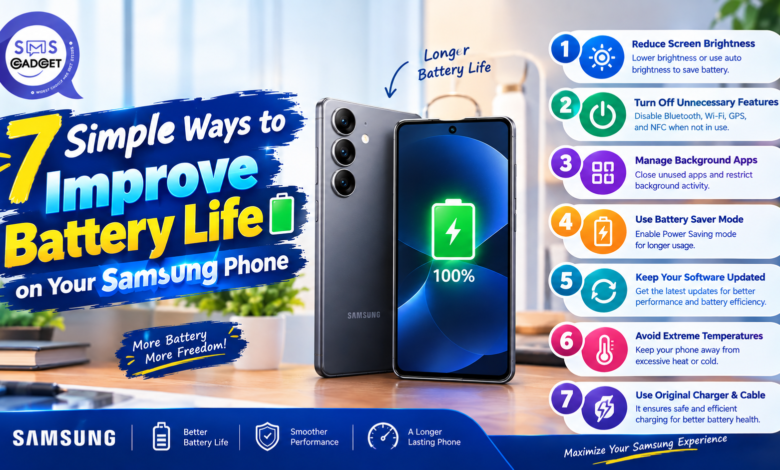
7 Simple Ways to Improve Your Samsung’s Battery Life
1. Lower Screen Brightness and Shorten Screen Timeout
Path: Swipe down for Quick Panel → drag the brightness slider, or Settings → Display → Screen timeout.
The display is, without much competition, the single biggest battery consumer on any smartphone, which makes this the highest-impact, lowest-effort fix on this entire list. Set brightness to Adaptive/Auto rather than locking it at a fixed low level, and drop screen timeout down to 30 seconds. Small change, meaningful daily savings.
2. Switch to Dark Mode
Path: Settings → Display → Dark mode
Here’s the part worth actually understanding, not just doing: on Samsung’s OLED/AMOLED screens, black pixels are genuinely powered off rather than just displayed as a dark color. That’s a real, measurable battery saving on Samsung hardware specifically, not a placebo, and not the same story on older LCD-based phones, where dark mode makes essentially no power difference at all.
3. Use Power Saving or Adaptive Power Mode—Not Just the Basic Toggle
Path: Settings → Battery and device care → Battery → Power mode
Flipping “power saving” on and calling it done leaves real savings on the table. Samsung actually offers Optimized, Medium Power Saving, and Maximum Power Saving, each pulling back performance and background activity a little further than the last. The one worth paying real attention to is adaptive power saving, which learns your actual usage patterns over time and applies restrictions intelligently, rather than blanket-limiting everything the same way regardless of how the phone’s actually being used.
4. Manage Background Apps Properly — Not Just “Close Everything”
Path: Settings → Apps → Select an app → Battery → Background usage limits (Put to sleep / Deep sleep)
Here’s a habit worth breaking: repeatedly force-closing apps from the recent apps screen isn’t actually more battery-efficient, Android’s own background app management already handles this reasonably well on its own, and constantly force-closing apps can even make things slightly worse by forcing full app reloads more often. The genuinely effective move is putting specific, rarely-used apps into Deep sleep, which stops them from running in the background at all until deliberately reopened.
5. Turn Off Always-On Display, or Set a Schedule
Path: Settings → Lock screen → Always On Display
AOD is genuinely convenient, but it keeps part of the screen active continuously, all day, every day. Scheduling it—active only during waking hours, say, offers a solid middle ground between keeping the convenience and reclaiming real battery back.
6. Disable Connectivity Features You’re Not Actively Using
Bluetooth, NFC, GPS/Location, and Hotspot are all worth toggling off via Quick Panel when they’re not actively needed. Here’s the one most articles skip entirely: UWB (Ultra-Wideband)—a background radio a lot of users don’t even know is running, quietly consuming power for device-finding or compatible-accessory features most people aren’t actively using day to day.
7. Reduce Refresh Rate on High Refresh Rate Displays
Path: Settings → Display → Motion smoothness
A 120Hz display refreshes twice as often as a standard 60Hz panel, and that directly increases power draw continuously, the entire time the screen is on. Switching to Standard (60Hz), or using Samsung’s adaptive refresh rate option where available, meaningfully extends battery life, especially noticeable during heavy video playback or scrolling sessions.
Bonus: Lesser-Known Settings That Make a Real Difference
Restrict Digital Wellbeing’s Usage Tracking
Here’s the counterintuitive part: the feature specifically designed to help monitor screen time is itself running background tracking that consumes some battery in the process. Restricting its data collection under Settings → Digital Wellbeing offers a small but genuinely real additional saving, easy to overlook, worth doing anyway.
Prefer LTE Over Automatic 5G Search in Weak-Signal Areas
In areas with poor 5G coverage, the phone’s radio can drain battery rapidly while constantly searching for a stronger signal. Manually selecting LTE under Settings → Connections → Mobile networks can make a real difference specifically in these weak-coverage situations.
Use Time or Wi-Fi-Based Automations Instead of Location-Based Ones
For anyone using Samsung’s Modes and Routines feature, it’s worth knowing that location-based triggers rely on continuous GPS polling, genuinely more battery-intensive than time-based or Wi-Fi-network-based triggers achieving essentially the same result.
Protecting Long-Term Battery Health (Not Just Today’s Battery Life)
Enable Battery Protection (85% Charge Limit)
Path: Settings → Battery and device care → Battery → More battery settings → Battery protection (available on One UI 6.1 and later)
This is a genuinely underrated setting. Consistently charging to 100% and staying plugged in afterward accelerates long-term battery wear, capping charge at 85% is a proven, effective way to preserve capacity over years of use. This is a health tip, not a today’s-battery-life tip, and it deserves to be treated separately from the seven above, it won’t make today’s charge last longer, but it protects how much capacity remains a year or two from now.
Avoid Extreme Heat
Heat—not just charging habits, is one of the single biggest accelerators of long-term battery degradation. Avoid charging under a pillow, in direct sunlight, or inside a closed car; all three trap heat right around the battery exactly when it’s most vulnerable.
Check Your Battery Health Rating
Path: Samsung Members app → Support → Phone diagnostics → Battery (or interactive checks)
Worth knowing honestly: Samsung doesn’t show an exact battery health percentage natively in Settings the way some competitors do. This diagnostic check through the Samsung Members app is the closest built-in option currently available.
If battery health checks come back showing real, meaningful degradation, it may be worth exploring current Samsung mobile price listings rather than pushing an aging battery further, sometimes the most motivating step is recognizing when it’s time for an upgrade rather than another workaround.
For anyone shopping around because their current phone just isn’t keeping up anymore, an established Samsung mobile shop is a solid place to start comparing options with confidence.
Frequently Asked Questions
What’s the difference between battery life and battery health?
Battery life is how long a single charge lasts today, based on current usage and settings. Battery health is the battery’s long-term capacity retention over years of use, shaped mainly by charging habits and heat exposure rather than daily settings like brightness.
Does dark mode actually save battery on Samsung phones?
Yes, genuinely, on Samsung’s OLED/AMOLED displays, black pixels are physically powered off rather than just rendered as a dark color, producing a real, measurable power saving. This effect doesn’t apply the same way on older LCD-based phones.
Should I close all my apps to save battery?
No, repeatedly force-closing apps from the recent apps screen isn’t more efficient than letting Android manage background apps on its own and can occasionally make things slightly worse by forcing full reloads more often. Putting specific rarely-used apps into deep sleep is the more effective approach.
What does Battery Protection (85%) actually do?
It caps charging at 85% of full capacity instead of 100%, which meaningfully slows long-term battery wear over years of use. It’s a battery health feature, not something that extends how long a single charge lasts today.
Does turning off 5G really help battery life?
It can, particularly in areas with weak 5G coverage, where the phone’s radio otherwise drains battery searching repeatedly for a stronger signal. Manually switching to LTE in those specific situations can noticeably help.
Final Thoughts
The seven basic tips above will meaningfully extend daily battery life, while the battery health section protects the phone’s long-term capacity, two genuinely separate goals, and treating them that way is the most useful way to actually think about battery management, rather than lumping everything into one vague pile of “battery tips.”
Begin with the most impactful, low-effort victories, brightness, dark mode, and refresh rate, before going on to more specific options such as UWB, Digital Wellbeing, and LTE preference. And before you close this page, make sure to check the Battery Protection status, it’s one of the most neglected but actually useful settings listed here, and it takes less than a minute to enable.
READ ALSO: Setting Up Your Digital Life in Colombia: What Nomads Get Wrong